Top 7 Printing Mistakes Everyone Makes (And How to Avoid Them)
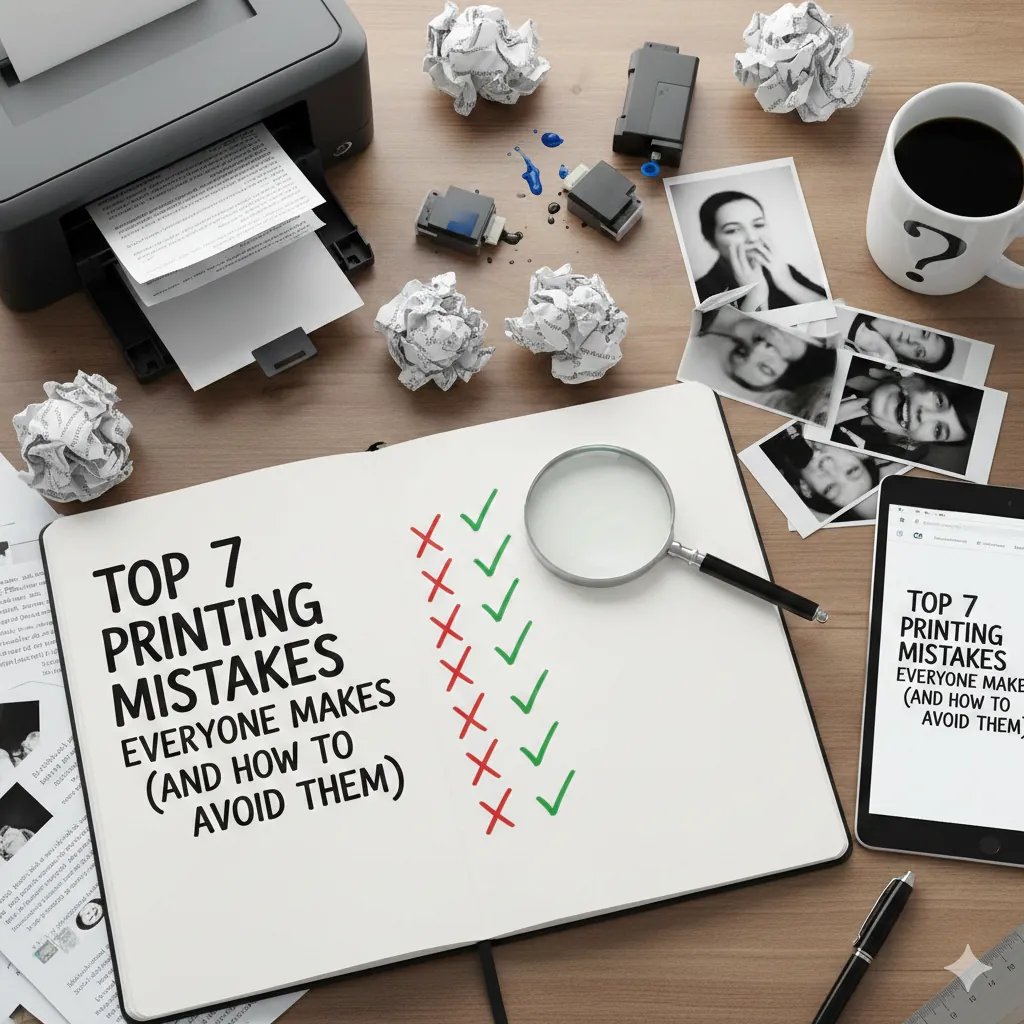
Printing should be simple—but for many home users, students, and businesses, it quickly becomes frustrating when errors, wasted ink, or poor print quality appear. The truth is that most printing issues come from a few common mistakes that nearly everyone makes without realizing it.
The good news? Avoiding these mistakes is easy—and doing so will save you time, reduce costs, and dramatically improve print quality. This in-depth guide breaks down the 7 most common printing mistakes, why they happen, and exactly how to fix or avoid them.
1. Using the Wrong Paper Type
Many printing issues begin with the paper, not the printer. Using unrelated paper causes poor color reproduction, ink bleeding, smudging, and even jams.
Inkjet Printers
Require inkjet-compatible paper to absorb ink without bleeding.
Laser Printers
Need laser-certified paper that withstands heat from the fuser.
- Always choose paper that matches your printer type
- Use photo paper for photos
- Use thick, smooth paper for brochures
- Store paper in a dry place
2. Printing with Incorrect Settings
One of the fastest ways to reduce print quality is using the wrong print settings.
Common Mistakes:
Before hitting “Print,” always check:
- Print mode
- Paper size
- Paper type
- Orientation
- Color settings
3. Ignoring Firmware & Driver Updates
Ignoring updates leads to connection problems, slow printing, missing features, and poor color accuracy.
How to Fix It
- • Update printer drivers from official support pages
- • Update firmware through printer software or mobile apps
- • Restart your printer after every major OS update
Bonus Tip: Set your printer to automatically check for updates.
4. Not Cleaning the Printer Regularly
Dust, debris, and dried ink can ruin print quality and cause jams. Symptoms include streaks, smudges, and roller slipping.
Essential Cleaning Tasks
5. Using Cheap or Non-Compatible Ink & Toner
Low-quality cartridges may look like a good deal but often cause leaking, clogs, and streaks.
The Risk
Faster wear on hardware, poor color output, and clogged printheads.
The Solution
Use manufacturer-approved ink or reputable compatible ink from trusted suppliers like Smart ePrinting.
6. Overlooking Printer Placement Environment
Where your printer sits affects quality. Humidity causes paper to curl, and heat dries out ink.
❌ Bad Locations
- Near windows (sunlight)
- Humid rooms
- Dusty shelves
- Near heat sources
✅ Good Locations
- Stable desk
- Dry, cool area
- Away from sunlight
- Good ventilation
7. Ignoring Low Ink / Low Toner Warnings
Printing when levels are critically low causes damage to printheads and toner leaks.
Tip: Replace cartridges promptly when getting low alerts. Use high-yield XL cartridges to reduce frequency.
Bonus: Avoiding Maintenance
Waiting for something to break leads to high repair costs. Preventive maintenance is key.
Simple Maintenance Checklist
| Weekly | Monthly | Every 3-6 Months |
|---|---|---|
| • Print 1 page (inkjet) • Check levels • Dust away | • Cleaning cycles • Wipe rollers • Update software | • Deep clean • Replace worn parts • Calibrate |
Advanced Tips for Professional Results
Use the Right DPI
600 DPI for docs, 1200 for graphics, 4800+ for photos.
Use High-Yield Cartridges
Reduces cost per print and replacement frequency.
Print in Batches
Minimizes cleaning cycles and saves ink.
Print Smarter Today
Avoiding these common mistakes can instantly improve your printing experience. Smart ePrinting is committed to helping you print smarter every day.
Get Expert Setup Help